
STEP 01
Give the assistant relevant inputs
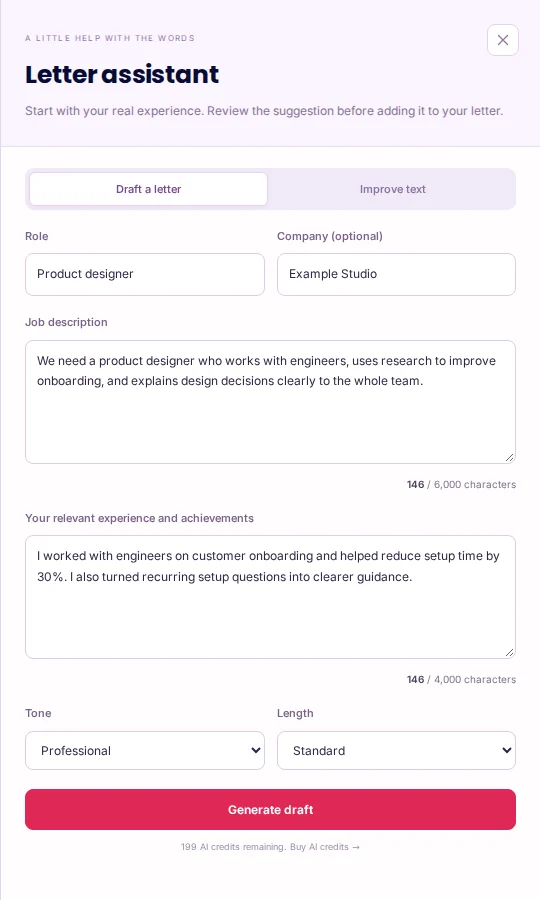
Sign in, open Cover Letter Maker and choose AI assistant when it is available to your account. Under Draft a letter, enter the role, optional company, the job description and your relevant experience and achievements. Describe your own contribution rather than copying a list of desirable skills. Use the multiline counters to check the input requirements. The draft needs a job description of at least 80 characters and experience notes of at least 30; meaningful detail is more useful than filler. Review the first-use disclosure before continuing if asked.

STEP 02
Generate a draft and review each paragraph
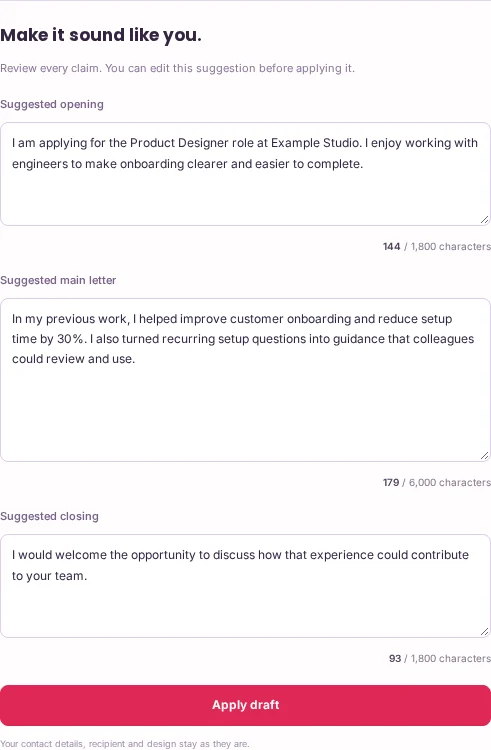
Choose a tone and length, then select Generate draft. Read the suggested opening, main letter and closing before choosing Apply draft. You can edit the suggested paragraphs in the assistant. Check the company, role, claims and connection to the advert; a generated draft cannot establish that you meet the employer’s requirements. Applying the draft updates the letter-writing fields while keeping contact details, recipient and design. Recheck those details yourself before sending.
STEP 03
Improve existing text without replacing everything
If you already have a letter, switch the assistant to Improve text. Choose the paragraph to rewrite, or select a passage in the letter before opening the assistant to work on just those words. Check Selected text, choose the tone and length, then use Rewrite text. Review the suggestion before replacing the paragraph or selection. Undo is available immediately after applying a change. Save your account copy explicitly when ready, inspect every PDF page and send it through the employer’s requested channel.
An example to work from
ROLE
Product designer

JOB DESCRIPTION
We need a product designer who works with engineers, uses customer research to improve onboarding, and explains design decisions clearly to the team.

EXPERIENCE NOTES
I worked with engineers on customer onboarding and helped reduce setup time by 30%. I also turned recurring setup questions into clearer guidance.
PUT IT INTO PRACTICE
Draft a fictional product-design application
- Alex enters Product designer, Example Studio, the example job description and the experience notes above. Choose Professional and Standard as starting settings.
- Select Generate draft. Read the suggested opening, main letter and closing; remove any unsupported promise or achievement before applying.
- Choose Apply draft and review the letter in the document preview. If a paragraph still needs work, use Improve text on that paragraph. Save the intended version and check the downloaded PDF.
EXAMPLE OPENING
I am applying for the Product Designer role at Example Studio. I enjoy working with engineers to make onboarding clearer and easier to complete.

EXAMPLE MAIN LETTER
In my previous work, I helped improve customer onboarding and reduce setup time by 30%. I also turned recurring setup questions into guidance that colleagues could review and use.

EXAMPLE CLOSING
I would welcome the opportunity to discuss how that experience could contribute to your team.
The company and achievements are fictional examples. Actual suggestions vary. Do not retain the figure or experience unless it is true for you; tone and length settings cannot fix inaccurate facts.
Common mistakes to avoid
- Providing only a job title
- The assistant also needs the responsibilities and your relevant evidence. A title alone provides little context.
- Applying the first result without reviewing it
- Edit the suggested paragraphs before applying them and check that the letter still sounds like you.
- Rewriting the entire letter for a small change
- Use a selected passage or one paragraph when that is all you want to improve.
Before you finish
Replace the example with true experience. The finished letter should explain a relevant connection, not simply repeat the advert.
- Role and company are correct.
- The job description contains useful responsibilities and requirements.
- Experience notes contain real examples.
- Every suggested paragraph has been reviewed.
- The intended draft, paragraph or passage was applied.
- The saved letter and exported PDF have been checked.
Further reading
Official references for the topics covered in this guide.