
STEP 01
Save and review your invoice
Sign in and open Invoice Maker. Add your business and client details, invoice number, dates, line items and payment instructions. Review the totals and download a PDF if you want to check the final document first. Choose Save invoice once to keep the invoice in your account. Later valid edits save automatically after a short pause. Watch for Saving… and then Saved; if a save fails, use Retry save. Once it is saved, choose Share in the toolbar; you can also use the sharing icon on its My invoices card. If Share is disabled after editing, wait for Saved before sharing. Save changes can also save immediately. Sharing is available to Free and paid accounts; your plan’s invoice creation allowance still applies.

STEP 02
Create the link and send it yourself
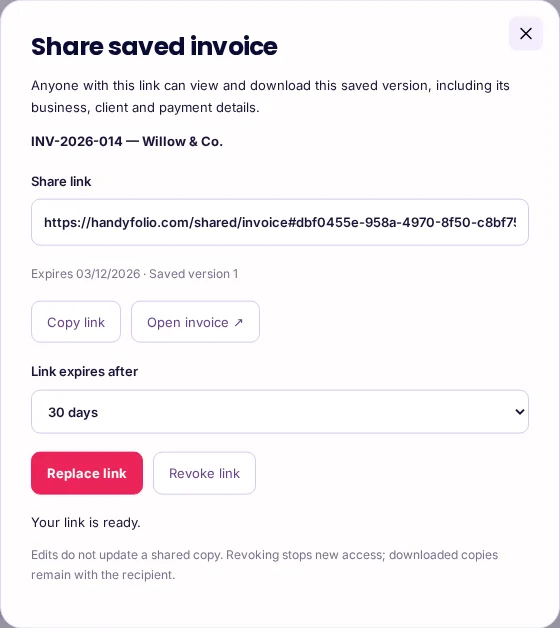
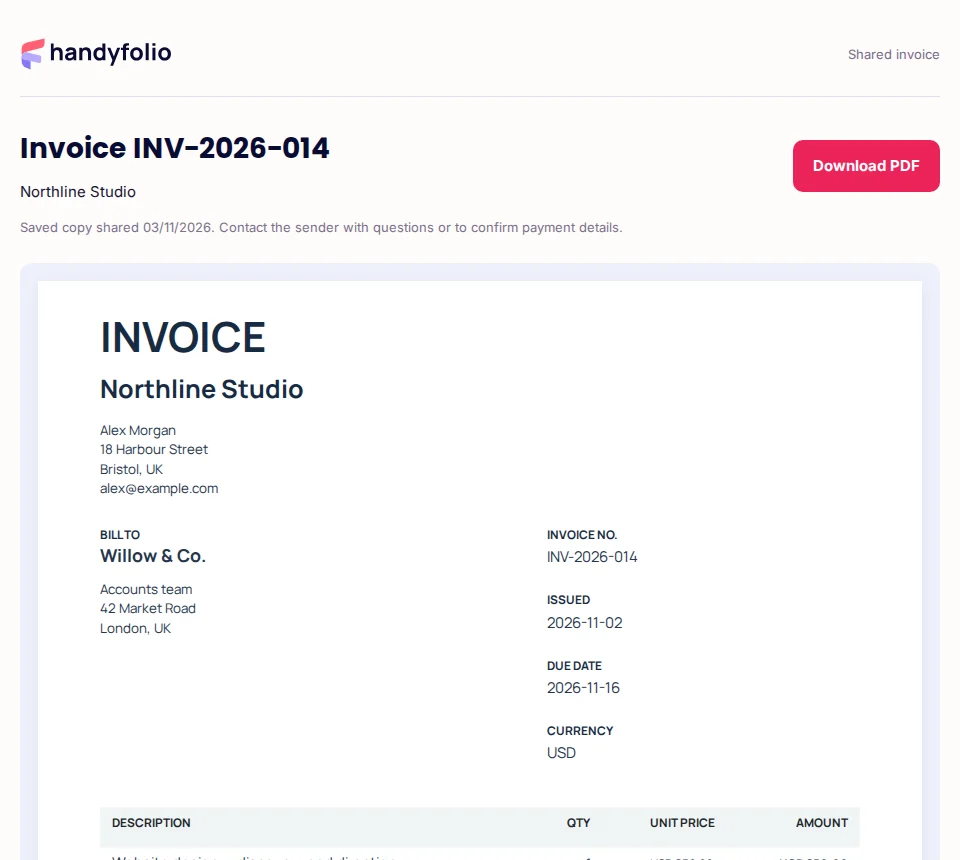
In Share saved invoice, choose a 7-, 30- or 90-day expiry; the default is 30 days. Choose Generate link, then Copy link. Use Open invoice to check the recipient view before sending the link through your own email or messaging app. Handyfolio does not automatically email it. Your client can view the shared invoice and choose Download PDF without creating an account. Anyone who receives the link can open it, including someone it is forwarded to. The shared copy includes the invoice’s business and client details, logo, amounts and payment instructions. The screenshots below use fictional details and a demonstration link.
STEP 03
Update, replace or revoke access
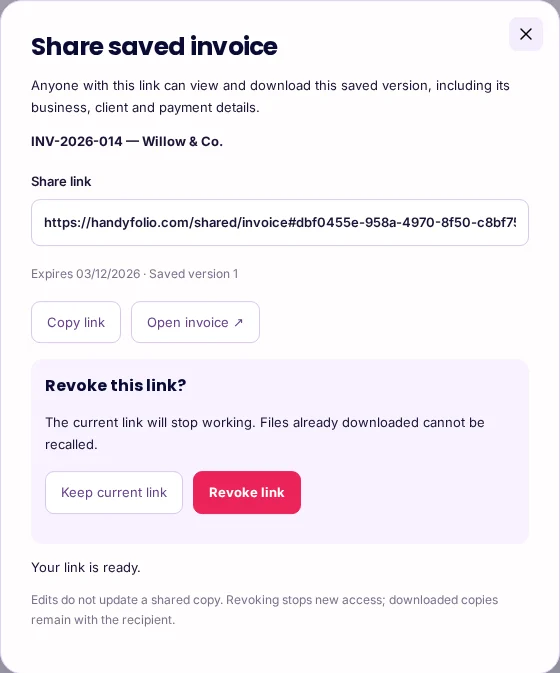
A sharing link shows the saved version published when you created it. Later edits and recorded payments do not update that copy automatically. To share updated details, wait for Saved, open Share and choose Replace link. Confirm the replacement and send the new link; the old link stops working. To stop access without creating a replacement, choose Revoke link and confirm. Links also stop working when they expire, or when the invoice or its owner’s account is deleted. A revoked or expired link displays an unavailable message. Previously viewed content and downloaded PDFs cannot be recalled.
An example to work from
Northline Studio saves invoice INV-2026-014 for Willow & Co.
The sender generates a link that expires after 30 days.
The client opens the link and downloads the PDF without signing in.
After a correction, the sender waits for Saved, replaces the link and sends the new address.
PUT IT INTO PRACTICE
Share a fictional design invoice, then correct it
- Northline Studio reviews its USD 1,700 invoice for Willow & Co., saves it and opens Share from the editor toolbar.
- The sender keeps the 30-day expiry, chooses Generate link and checks Open invoice. Willow & Co. can read the invoice and download the PDF without an account.
- The sender later corrects the payment instructions and waits for autosave to finish. Replace link publishes that saved correction and disables the previous link. The sender sends the new link to the client.
BEFORE SENDING
Correct client and invoice number
Reviewed dates, currency and amounts
Correct payment instructions

AFTER A CORRECTION
Wait for Saved → Share → Replace link → Confirm
Copy the new link and send it to the client

TO END ACCESS
Share → Revoke link → Confirm
The example is fictional. Sharing does not collect or verify payment, mark an invoice Sent, or confirm that a client has opened it. Contact the client directly to resolve questions or verify changed payment instructions.
Common mistakes to avoid
- Assuming edits change a link already sent
- The shared document is a saved snapshot. Wait for the correction to save and replace the link, then send the new address.
- Treating noindex as a password
- Shared pages are marked noindex, excluded from the sitemap and opened without website analytics. These search controls do not prevent access by someone who has the link. Do not post a confidential invoice link publicly.
- Expecting revocation to erase downloaded files
- Revocation stops new access through that link. A recipient can keep a PDF or another copy they already obtained.
Before you finish
Check the recipient view before sending. Treat the link like the invoice itself: share it only with intended recipients.
- The invoice has been saved with the intended details.
- The client, total and payment instructions have been reviewed.
- The chosen expiry suits the client’s needs.
- Open invoice shows the intended saved version.
- The link is sent only to intended recipients.
- After any correction, a replacement link is sent.
Further reading
Official references for the topics covered in this guide.