
STEP 01
Choose for the application route
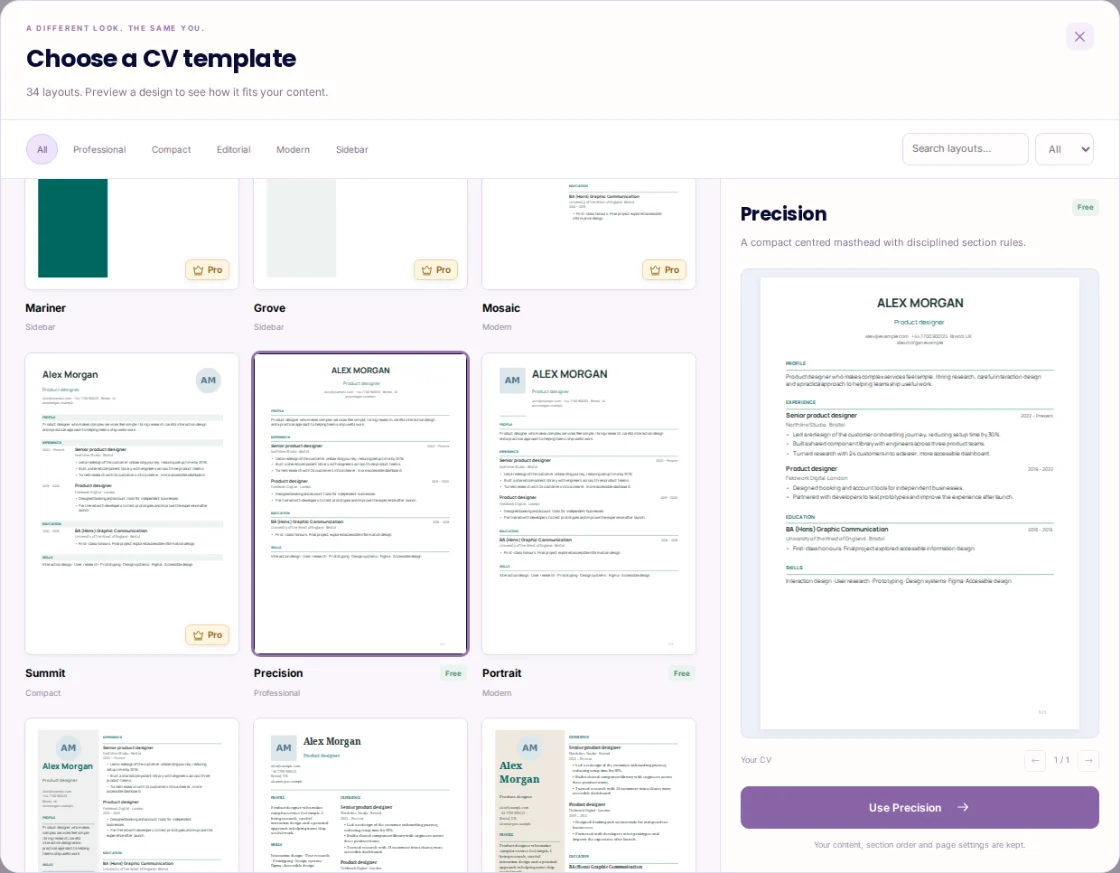
Start with the employer’s instructions. If an application asks for Word, downloading a PDF does not satisfy that requirement. For a PDF uploaded to a recruitment portal, begin with a straightforward single-column design such as Ledger, Brief or Precision. Columns and photos can be useful for direct sharing, but different parsers may read them in different orders. A template cannot guarantee an interview or a screening result.
STEP 02
Try the design with your real content
Open Templates in CV Maker and compare the live preview using your own details. Portrait puts a square photo beside a single-column document. Index has a narrow supporting column; Byline combines an editorial header with two columns. Pro designs include framed, timeline and dark-page options. Photos are optional. In Design, move sections between columns when that option is available. Keep familiar headings and enough room to read the content comfortably.
STEP 03
Check the exported document
Review every preview page before downloading. Check for an isolated heading, a crowded sidebar or a photo that takes space away from useful evidence. Reduce repetition before making the type smaller. Open the downloaded PDF, select and copy its text into a plain-text editor, and check names, dates and work-history order. If the application extracts fields, review those fields too; a local copy-and-paste check cannot reproduce every hiring system.
An example to work from
Upload to a recruitment portal: start with Precision or Brief.
Share directly with a hiring manager: compare Portrait or Index.
Review: the same content, every page, working links and readable text.
PUT IT INTO PRACTICE
Choose a layout for a fictional two-role CV
- Alex has two relevant roles, one qualification and a short skills list. Enter that content before browsing templates.
- Compare Precision and Index. In Index, check whether the profile fits the sidebar; move Profile to Main in Design if it feels cramped. A portrait is optional in either workflow.
- Download the preferred PDF and review both the visible layout and copied text. If the portal reads the sidebar in an unexpected order, switch to the single-column layout and check again.
CONTENT TO PRESERVE
Alex Morgan — Product designer
Two roles with accurate employers and dates
One education entry
Relevant skills and a working portfolio link

LAYOUT CHECK
Can I find the name and contact details immediately?
Does each heading sit beside or above the right content?
Does copied text keep each employer with its role?
This is a comparison exercise, not an ATS score. Employer requirements and the actual uploaded result take precedence over a template label.
Common mistakes to avoid
- Assuming a Pro badge means better screening results
- The badge identifies plan access. It is not a certification from a hiring platform.
- Shrinking all the text to force one page
- First remove repeated or irrelevant material. Readability matters more than a page count chosen without reference to the application.
Before you finish
Keep the layout that makes your evidence easiest to follow, rather than the one with the most decoration.
- The requested file format is supported.
- The layout has been checked with your actual content.
- Headings and dates are easy to follow.
- Every photo and link is intentional.
- Copied PDF text has been reviewed.
- Any application-parsed fields have been checked.
Further reading
Official references for the topics covered in this guide.