
STEP 01
Check the files that are actually published
Open the icon URL directly on your deployed domain. A missing file, an old image or an HTML error page points to a deployment problem. If you chose /icons/ in Favicon Generator, extract the ZIP and put its files in that folder. Uploading the ZIP itself does not publish the icon URLs inside it. Check the manifest URL as well as the ICO and PNG files.
STEP 02
Review the page links and the manifest together
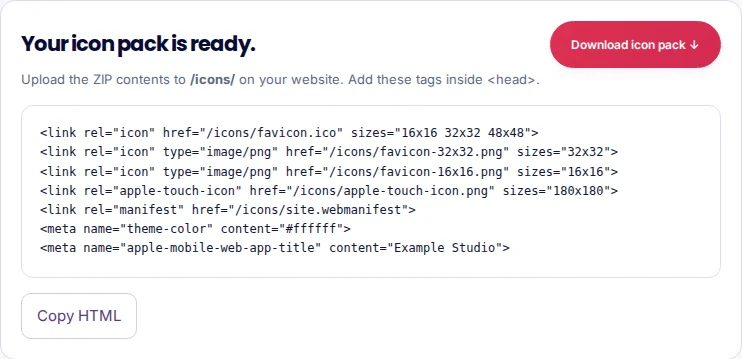
Inspect the published page head, including any icon links inserted by your framework or CMS. A new favicon.ico can coexist with a link that still points to an old PNG. Keep the intended icon links and review stale or conflicting ones. When moving the pack to a different folder, regenerate with that path so both the HTML and the manifest’s icon references agree. Test the homepage and a nested page.
STEP 03
Separate browser cache from search results
If the deployed files and references are correct, try a new tab or a fresh browser profile. The generator’s optional version changes generated file URLs when you regenerate and reinstall the pack; do not update only one reference by hand. Search results are separate from your browser tab. Google may need to recrawl the homepage and favicon, and meeting its technical requirements does not guarantee that an icon will appear. Keep the icon available to the relevant crawlers.
An example to work from
Pack folder: /icons/
Direct checks:
https://example.com/icons/favicon.ico
https://example.com/icons/favicon-32x32.png
https://example.com/icons/site.webmanifest

Then compare the published HTML links with those exact paths.
PUT IT INTO PRACTICE
Fix a pack moved from the root to /icons/
- A fictional site now stores its icon files in /icons/, but the page still points to /favicon.ico and the manifest contains root-level image paths.
- Set /icons/ as the path in Favicon Generator and generate a fresh pack. Extract the files into that directory and replace the old page snippet with the generated one.
- Open the linked files, inspect the manifest references and check a new browser tab. If only search results remain old, keep the deployed files stable while the search engine recrawls them.
<!-- An example path correction, not the entire generated snippet -->
Before: <link rel="icon" href="/favicon.ico">
After:  <link rel="icon" href="/icons/favicon.ico">

Also review:
<link rel="manifest" href="/icons/site.webmanifest">
The icons listed inside that manifest must resolve to uploaded files.
Use the complete snippet generated for your settings, including platform or dark-mode links when selected. Browser tabs, home-screen icons and search results can update independently.
Common mistakes to avoid
- Testing only the large generator preview
- The preview uses your selected input. It does not prove that the deployed website serves those files.
- Updating HTML but leaving the manifest behind
- A home-screen icon may still use an old manifest reference. Review both sets of URLs.
- Expecting a search-result icon to update immediately
- Search results are not a live mirror of the current browser tab. Crawling and display decisions happen separately.
Before you finish
First establish that the new files are live. Cache clearing cannot fix an incorrect path or an unpublished file.
- Direct icon URLs show the new files.
- The pack is extracted into the intended folder.
- Published page links use that folder.
- Manifest image references resolve correctly.
- Conflicting old links have been reviewed.
- A fresh browser context and the final deployed page have been tested.
Further reading
Official references for the topics covered in this guide.